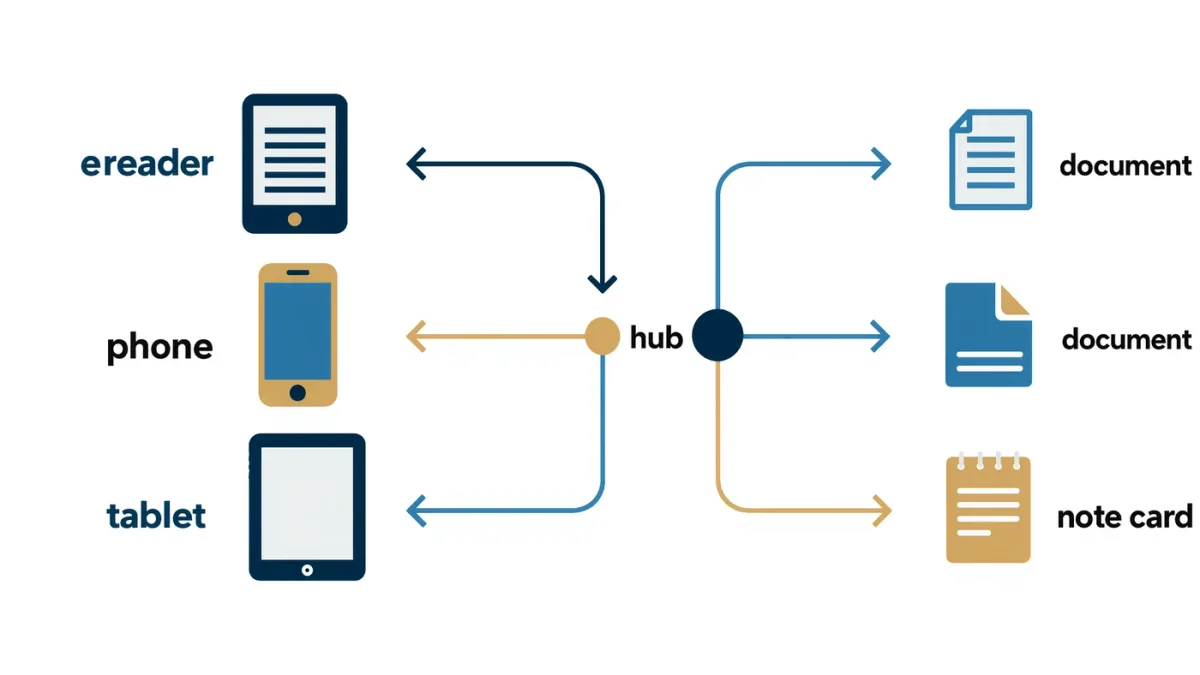
Yes — you can export highlights from ebooks, and the main door is already open: Amazon keeps every highlight and note from your Kindle account at its notebook page, read.amazon.com/notebook, where an export button emails them as HTML or PDF, per Amazon's help pages. The catch is philosophical more than technical — you are exporting notes about a licensed book, not the book. Manage that expectation and the workflow is painless. Mostly.
Where do Kindle highlights and notes actually live?
In two places: on the device, tucked under each book, and on the web, gathered at Amazon's notebook page, which collects highlights from everything you have read on the account, per Amazon's help pages. The notebook is the better window — searchable, copyable, sortable by book, and home to the export button. Start there, and the device copy becomes a drafting table rather than an archive.
The export itself is refreshingly boring: open the notebook, pick a title, tap export, and Amazon emails you the book's highlights and notes as an HTML file and a PDF. What lands in your inbox is yours to paste anywhere — a notes app, a document, a friend who needs the exact quote. Two limits fence the garden. First, some publishers cap how much of a book can be highlighted, and once you hit the cap, further highlights simply fail — a licensing constraint, not a bug. Second, the export is flat text by location order: page numbers as such do not exist in reflowable ebooks, so locations travel instead.
Notes behave slightly differently from highlights: a highlight marks, a note comments, and the notebook carries both with your text attached below the passage. For study and writing workflows, the note field is where the value compounds — the passage is context, but your one-line reaction is the part you will actually reread.
What about Kobo and reading apps?
Kobo stores its annotations in a database on the device — a file community tools have been reading for years — while official export options stay thin, per Kobo's support documentation. Apple Books shows your highlights and notes inside each book, copyable one at a time. Google Play Books keeps notes in-app with modest export. Apps lag here. Honestly, everyone trails Amazon's notebook.
The Kobo route deserves specifics because it works, just unofficially: connect the reader over USB, and the annotations live in an SQLite database in the device's hidden folder, which free database browsers can open and dump to CSV. It is the standard community workaround, documented across Kobo forums for a decade, and it turns a closed reader into an ordinary data source. The price is a mildly technical afternoon the first time, and thirty seconds every time after.
Third-party services exist to automate the middle of this pipeline — Clippings.io for Kindle exports, Readwise for cross-platform sync into note apps — and both predate this article by years with steady user bases. They solve the recurring-copy problem for people who highlight weekly. If you highlight two books a year, a manual export is lighter than a subscription.
How do highlights get into Notion, Obsidian, or Evernote?
Through email and paste, mostly, with a template doing the dignity. Export the book's notes from the notebook as HTML, open it, and paste into your tool — or let a sync service pipe highlights automatically and forget the ritual entirely. Notion and Obsidian both reward a tiny skeleton: title, author, date finished, the highlights, and one line of your own takeaway at the bottom. The line matters more than the pile.
That final line is the part worth defending. A page of forty highlights is a transcript; a page of forty highlights ending in 'the argument collapses in chapter six' is a thought. Review cadence does the rest: a monthly pass over that month's exported books takes minutes and converts the pile from storage into recall. If you use Obsidian, the highlights-as-markdown route fits its linking naturally; Notion users tend toward one database page per book; Evernote, as ever, accepts everything and judges nothing.
One boundary worth knowing while you build this: the license you bought generally covers personal notes and fair-use-length quotation, not republishing the book's text wholesale — the US Copyright Office's plain-language FAQ on what copyright protects is a sensible primer. Export freely, quote honestly, post sparingly. Your notes are yours; the prose is not.
How do you build an export workflow that lasts?
- Bookmark read.amazon.com/notebook in the browser you actually use — the workflow dies at the forgotten URL more often than at any later step.
- Highlight with the note field attached — one short reaction per passage — so exports arrive pre-annotated instead of mute.
- Pick a fixed cadence, monthly works, and export each finished book's notes as HTML within a day or two of finishing, while context is warm.
- Paste into your tool's template — title, author, date, highlights, one-line takeaway — and tag it so future-you can find it without remembering the title.
- Review the month's pages in one sitting: delete dead highlights, promote quotes worth rereading, and let the takeaways argue with each other across books.
- For borrowed library books, export before the return date — when the loan ends, access to those highlights inside the ecosystem ends with it.
Questions readers actually ask
Why can I not highlight more of a book?
Because the publisher set a cap. Many Kindle titles limit total highlighting to a fraction of the text — a licensing control, not a device quirk — and once you reach it, new highlights stop taking. The notebook keeps what you made before the cap. If you are researching a book that heavily, the practical answer is a notes file beside it, or the paper copy where your margin is sovereign.
Do highlights survive if I delete the book?
Generally, yes — the notebook is an account-level record, so highlights persist on the web even after the title leaves your device, and they reappear if you load the book again. The cautious habit is still exporting before deleting anything you care about: account features change, and a file in your notes app answers to no one. Export first, delete second. Forever.
Can I export highlights from borrowed library books?
Yes, while the loan is live — highlights made on a borrowed Kindle title sit in the same notebook and export the same way. The trap is timing: once the loan ends, your in-ecosystem access to that book's text ends, so export before the return date. Do that, and the library remains the cheapest research collection in existence.
Is exporting my highlights legal?
Personal export and quotation at fair-use length, yes — that is ordinary note-taking, and the Copyright Office's own materials frame copyright as protecting reproduction and distribution to others, not your private study. The line arrives if you republish long passages or the bulk of a text. Keep the pile private, quote briefly in public, and the workflow stays boringly lawful.